This guide is provided to assist applicants during the application submission process. Please review all items prior to submitting or uploading and submitting an application.
Availability: The form is currently unavailable. The form will open for submissions from October 31, 2025 until the established application deadline of January 30, 2026 at 5:00 PM [ET]. The submission portal may be accessed at the following link:
Charter School Application Submission Form
Download the full Charter School Application Guidance document
Multi-page form: There are multiple pages on this form; be sure to take time to review each page and its content requirements.
- The applicant may navigate between pages using the “Previous” or “Next” options at the bottom of each page.
- Also located at the bottom of each page is a “progress bar” indicating how far the completer has progressed through the form.
- An applicant may navigate to further pages without filling out the required fields on previous pages, however, you will not be able to submit the form until all required fields are completed.
- If an applicant attempts to submit the form without a required field filled out, the web browser will redirect the user back to the first required field that is not filled out. The required fields that need attention will be highlighted in red.
Save & Resume: The applicant has the option to Save & Resume work on this form, which allows the user to save a partially completed form and come back at a later date/time to continue working, and complete/submit the application.
- The applicant may use Save & Resume feature at any time while working on the application form.
- With the Save & Return feature, the applicant will be able to save their partially- completed form at any time during the open window (January 5th – January 30th). The applicant will need to use the unique form link to return to the partially completed form. The unique form link is available at the bottom of each page; the applicant may also choose to have this link emailed to them. When they are ready to revisit the form, they will simply click or paste the unique form URL into a browser, and the form will reload with any fields that have already been filled in. If they make any changes to the form, they will need to re-save and resend the form URL to themselves. Each version of the form will have an updated unique link.
- Please note: file uploads will need to be the last step completed before hitting the “Submit” button to ensure the most recent version is saved and submitted. The applicant will need to save and send the link each time they work on the form; if the applicant returns to fill out the form more, be sure to save and send yourself the update URL link to the partially completed form, as this new link will contain the most recent changes.
- Recommendation – complete all work except for uploading attachments, use the Save & Resume feature one last time and then come back to upload all attachments at one time. After all, attachments are uploaded, hit submit. Using these steps will ensure that if there is an issue with submission, the only thing not saved will be the file uploads and the applicant can retry with only needing to upload the files.
Entering narrative (text) responses: With the exception of fill-in forms and appendix documents, the applicant will type responses to the narrative requirements into text boxes.
- It is recommended that the applicant prepare their documents in Word or other similar programs to copy and paste into the online application. Some features are not accepted by the online form (graphics, charts/tables, bold/italic/underlined font) but the following features are accepted when pasted:
- Bulleted lists
- Numbered lists
- Paragraph indentions
- For images, tables, and other graphics that need to be referenced or included – but cannot be entered into the narrative response – the applicant should use appendix item G, “Support Documents for the described Educational Program.”
Appendices & Files Uploads: The applicant will submit appendices by uploading files. Please use the information provided below to reduce file sizes before uploading them; doing so will assist in ensuring the submission is transmitted quickly and efficiently.
- The appendices required by all applicants are to be uploaded individually according to the upload features within the application.
- Appendix items that are marked “as applicable” are to be combined into three sets, once the applicant has completed the compress/ “zip” process.
- Tips on how to compress/zip individual files to reduce the size and multiple files to form a combined document can be found below.
How to compress/"zip" files and folders:
- Create a folder or identify the folder to be compressed. The quickest way to create a zip file is to place all the files that you want to archive into one folder. You can place multiple files and folders into the folder that you are creating the ZIP file from.
- Rename or confirm the name of the folder to whatever you want the ZIP file to be named.
- Right-click on the folder. Hover your cursor over the “Send to” option on the menu and a new submenu will open. Select “Compressed (zipped) folder”
- Wait for the folder to be created. Depending on the size or number of files/folders, it may take a few minutes.
- Once the process is complete, the ZIP file will be displayed in the same location as the original file/folder.
When ready to upload documents, select “Choose File” from within the portal and select the compressed file/folder you wish to attach for that appendix item.
Some items required for Appendices:
Submission & Confirmation: upon hitting the “Submit” button, a confirmation email will be sent
- The confirmation email will contain a copy of the submitted application and a downloadable PDF of the submission will be sent to the email address entered in the “Contact Information” portion of the application.
- An email is automatically sent to the proposed sponsor to notify them of your submission in real-time.
Visual Guide:
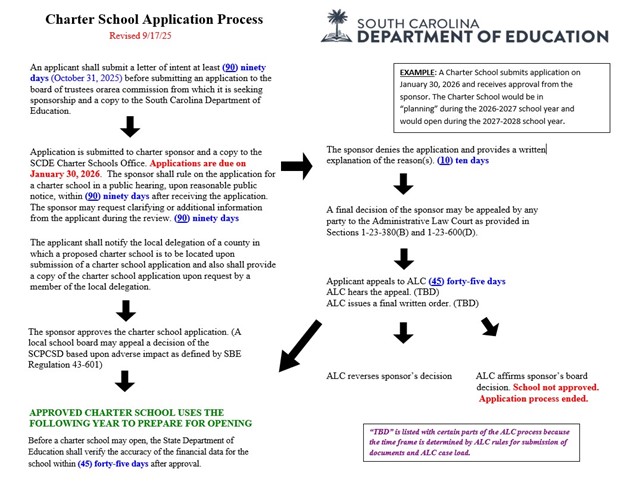
2026 Charter School Application Process
2026 Charter School Application Evaluation Rubric